Modbus Mapper Pro - Quick Start Guide
Get up and running with Modbus traffic analysis in minutes
Getting Started
System Requirements
- Computer: Windows 10 or Windows 11
- Connection: USB-to-RS485 adapter (about $15-30 online)
- That's it! Nothing else needed
Optional: A physical RS485 cable "tap" if you want to spy on existing cables without disconnecting them.
Installation Options
Pick One Way to Get It:
Option 1: Download & Extract (Easiest)
- Go to QuantumBitSolutions.com
- Click Download
- Extract the file
- Click the .exe to run it
- Done! No installation hassles.
First Time?
The first time you run it, it might take a few seconds to set itself up. That's normal.
Option 2: Microsoft Store (For IT Teams)
- Open Microsoft Store on your computer
- Search for "Modbus Mapper Pro"
- Click Install
- Find it in your Start Menu
- Done!
Quick Setup
For older systems and embedded PCs:
For modern Windows systems:
For managed environments:
Step 1: Installation and Launch
After downloading and extracting the application:
- Extract files to your desired location (portable - no installation needed)
- Connect your RS485 adapter to your Modbus RTU network
- Launch the application by running the executable
Step 2: Choose Your Operating Mode
For this quick start guide, we'll use Mode 1 - Listen Only — it's the safest and easiest way to start.
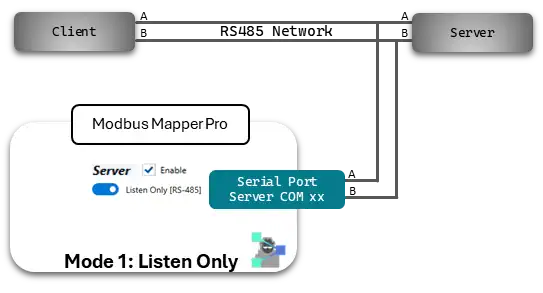
- Click the Mode Button (bottom right of the application)
- Select Listen Only mode
- You're ready to connect!
Other Modes
Once you're comfortable, explore Mode 2 (Pass-Through) and Mode 3 (Multiplex) — see User Manual: Operating Modes for details. Note: These modes require network reconfiguration.
Step 3: Connect Your RS485 Adapter & Start Listening
What You're Doing
You're tapping into the RS485 cable (like plugging in a phone to hear a conversation without being part of it).
How to Connect
Find your RS485 cable: - Usually 2 wires going to Modbus devices - Often labeled A and B (or sometimes ± or D+/D-) - Also find the Ground wire
Connect your adapter:
Existing RS485 Cable          Your USB Adapter
    A ─────────────────────────→ A
    B ─────────────────────────→ B
   GND ─────────────────────────→ GND

Plug adapter into your computer USB port
Important
Don't disconnect anything. Just tap in. You're only listening, not interrupting.
Software Setup
-
Pick COM Port
- Plug in the USB adapter
- In Mapper Pro, select which COM port it's using
- (Check Windows Device Manager if unsure — look for COM3, COM4, etc.)
-
Set Speed (Baud Rate)
- Ask your device manager what baud rate your system uses
- Common ones: 9600, 19200, 38400
- Pick from the dropdown
-
Configure Server Settings
- Server: ✅ Enable
- Port: COM15 (depends on your adapter)
- Baud: 19200 (check your device documentation)
- Parity: None (typical)
- Data Bits: 8 (typical)
- Stop Bits: 1 (typical)
- Listen Only [RS-485]: ON
-
Click "Start" to begin monitoring
-
Mapper Pro is now capturing all Modbus traffic
Within seconds, you'll see:
- ✅ Devices talking
- ✅ All the data they exchange
- ✅ Register addresses
- ✅ Data values in readable format
Step 4: See What Your Devices Are Doing
Once monitoring starts, you'll see three main views:
Client Requests View — "What Are They Asking For?"
Shows every question being asked to devices:
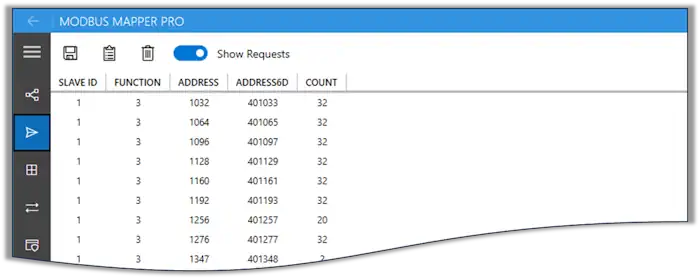
| Field | Description | Example |
|---|---|---|
| Slave ID | Modbus device address being queried | 1, 17 |
| Function | Modbus function code of the request | 03 Read Holding Registers, 04 Read Input Registers, 16 Write Multiple Registers |
| Address | Modbus Base register/coil address in standard format | 40001, 30001, 00001 |
| Address6D | 6-digit addressing format for clarity and consistency | See guide: 6-Digit Addressing |
| Count | Number of registers/coils requested | 1, 2, 10 |
What to notice: If you see 100+ different requests, that's normal. Devices are busy!
Modbus Map (Data View) — "What Are The Values?"
This view lets you transform raw Modbus registers into meaningful values. Use data type, byte swap, gain, and offset to convert readings into human-friendly units (similar to Modbus Monitor XPF).
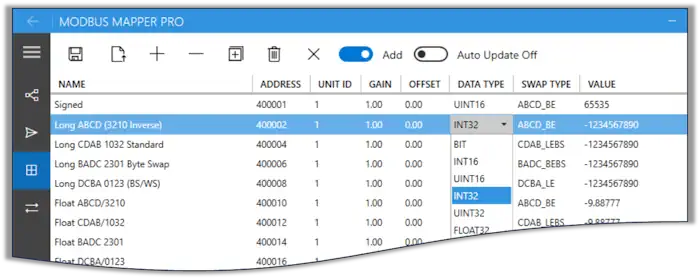
| Control | Purpose |
|---|---|
| Save | Export the Modbus Map to CSV for use in other tools (e.g., Modbus Monitor XPF) |
| Open | Load a previously saved Modbus Map (local or exported from XPF) |
| + (Add) | Add a monitoring point for an address to apply post-processing |
| - (Remove) | Remove the selected monitoring point from the list |
| [[+]] (Add All) | Automatically add monitoring points for newly discovered requests |
| Delete | Clear all monitoring points from the current map |
| Add | Automatically add or update values from client responses |
| Auto Update | Periodically refresh values from internal captured memory |
- Click "Create Map" or "Add All"
- All discovered data appears as a table (like Excel)
- Each row shows one piece of data with its current value
-
Change the name to something meaningful:
- Change "Register 100" to "Temperature"
- Change "Register 101" to "Pressure"
- Check the "Auto Update" box to watch values change in real-time
Example:
Messages/Logs Tab — "What's Happening Right Now?"
This tab shows live raw traffic captured in all modes. Use it to verify requests/responses, spot errors, and understand timing.
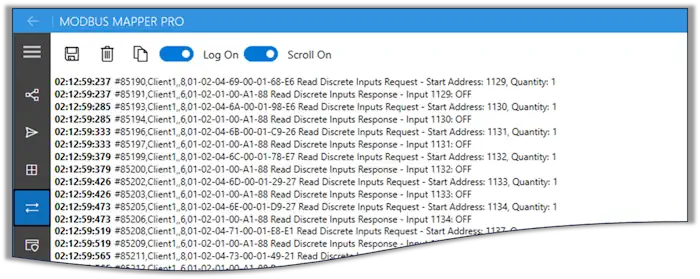
| Control | Purpose |
|---|---|
| Save | Save the traffic log to a file for later analysis |
| Delete | Clear the current log entries |
| Log On | Toggle logging visibility (show/hide traffic) |
| Scroll | Enable auto-scroll to keep the latest messages in view |
Pro tip: Turn on "Auto Scroll" so new messages appear at the bottom automatically.
Shows every single message:
- Raw data that was sent
- Raw response that came back
- What it all means in English
- When it happened (timestamp)
Use this for: Understanding problems, seeing errors, timing analysis
Step 5: Save Your Discoveries
Once you've built your Modbus map:
- Save the map for documentation purposes.
- Copy data to clipboard for sharing
- Export configuration for use in other applications (Modbus Map View - Save)
- Use with Modbus Monitor XPF for active monitoring and control
Troubleshooting
Replay from File
Replay emulates a device response without decoding Modbus. It performs an exact byte-for-byte request match, so it can also be used for a non-Modbus byte protocol.
- Enable Record TX/RX exchanges before starting. In pass-through mode, requests and responses are known from the two sides of the proxy. In Listen Only [RS-485] mode, the application reassembles CRC-valid RTU frames and correlates likely request/response pairs from the passive stream. Starting a new recording clears the prior in-memory recording. Identical TX/RX pairs are saved once, so repeated polling does not bloat the replay file.
- Select Save Recording and write a
.txtreplay file. - Enable Replay from file, select Load Replay, then start with one client port enabled. The matching response is returned on that same port; no server port is required.
The file is plain text, one exchange per line:
# Comments are allowed.
TX: 01 03 00 00 00 02 C4 0B, RX: 01 03 04 00 2A 00 2B 9B 3B
TX: AABBCC, RX: 10 20 30
TX and RX bytes may be spaced, compact, or dash-separated (for example, 01-03-00-00). Exact matching includes every byte, including Modbus CRC bytes when they are part of the request. If a request has no matching TX line, the application logs a replay miss and sends no response.
Passive recording accepts standard and custom Modbus function codes with variable frame lengths. Known standard functions use their request/response structure for correlation; unknown or custom functions are paired by unit ID, function code, arrival order, and response timeout. Because a two-wire passive tap does not expose direction, custom-function pairing is a best-effort inference and retries or multi-master traffic can be ambiguous. Only CRC-valid RTU frames become passive replay pairs. You can still create or edit replay files for any hexadecimal protocol manually; capturing arbitrary non-Modbus traffic requires a separate raw framing mode.
RS-485 Replay Emulator
Use RS-485 Replay Emulator only when the selected Server port is connected as an active RS-485 participant. It reads requests from that port and writes a matching replay response back to the same port. It is mutually exclusive with Listen Only [RS-485] and requires a loaded replay file.
Before starting, disconnect or disable every real slave that could answer a replayed unit ID. Two devices responding to the same request can corrupt the bus and cause equipment to act on unintended traffic. The application asks for confirmation each time this active mode starts.
Replay modes match received bytes against the loaded replay requests as a stream, so a request split across multiple serial callbacks is retained until it completes. Replay fragment idle gap controls only when an unfinished matching prefix is discarded. Leave it at 0 for the automatic baud-derived value with a 25 ms host-scheduling minimum; increase it for high-latency USB/serial adapters. It is not used to split a replay request that already matches a loaded request prefix.
Common First-Time Issues
No Traffic Detected
Causes & Solutions: - Wrong COM port → Check Device Manager for correct port - Wrong baud rate → Try common rates: 9600, 19200, 38400 - Bad connections → Verify A/B wiring and ground - Network inactive → Ensure HMI is actually polling
Garbled Data
Causes & Solutions:
- Wrong baud rate → Match network settings exactly
- Wrong parity/stop bits → Check network configuration
- Electrical interference → Improve cable routing/shielding
- Ground loops → Isolate monitoring connection
Partial Capture
Causes & Solutions: - High traffic volume → Increase buffer settings - USB adapter limitations → Use industrial-grade adapter - Timing issues → Adjust capture timing parameters
What's Next?
Immediate Actions
- Document discoveries - Export captured register maps
- Identify patterns - Note polling frequencies and sequences
- Validate findings - Cross-reference with known system behavior
Advanced Usage
- Set up continuous monitoring for long-term analysis
- Compare before/after system changes
- Export data for inclusion in system documentation
- Share findings with team members
Need More Help?
- 📖 Complete User Manual - Detailed feature guide
- 🎥 Video Tutorials - Visual step-by-step guides
- 📧 Support - Email assistance for licensed users
- 💬 Community - User forum for tips and discussions
In 10 minutes, you should be successfully monitoring Modbus traffic and discovering register maps!