Navigation
📚 Documentation Home → Guides → ThingSpeak for Windows XPF
ThingSpeak Add-on for Windows XPF
Retired add-on — archived documentation
The Modbus Monitor ThingSpeak add-on is retired and is not offered for new purchases. This page preserves historical instructions for existing installations, not a supported setup path for new projects. Continued compatibility is not guaranteed. This retirement applies to the Modbus Monitor add-on, not to the MathWorks ThingSpeak service.
For current integration documentation, see MQTT (XPF), MQTT (Android Advanced), or Google Sheets (Android Advanced).
Archived setup reference for the retired Modbus Monitor ThingSpeak add-on.
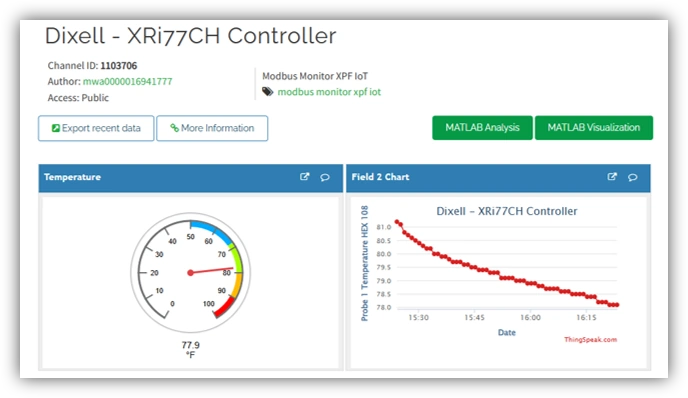
Archived overview — background for existing installations.
Quick Start (5 Minutes)
Prerequisites
✅ Modbus Monitor XPF installed
Existing ThingSpeak Add-on license key (retired; no new purchases)\
✅ ThingSpeak account at thingspeak.com
✅ ThingSpeak channel created - See Overview Guide Step 1 & 2 for detailed channel creation instructions
Step 1: Configure in XPF
- Open ThingSpeak Add-on
-
Tools → Add-Ons → ThingSpeak
-
Enter Connection Details
- Write API Key: Paste from ThingSpeak
- Channel ID: Your ThingSpeak channel number
- Update Interval: 30 seconds (min 15s for free tier)
-
Check Enable ThingSpeak Add-On
-
Apply Settings
- Click Apply → OK
Step 2: Verify Data Flow
- Start Polling in XPF
- Open your ThingSpeak channel
- Confirm data appears in real-time charts
Done! Your Modbus data is now logging to the cloud.
Configuration Details
Add-On Settings
Required Settings:
| Setting | Value | Source |
|---|---|---|
| Write API Key | ABCDEFG1234567890 |
ThingSpeak → Your Channel → API Keys |
| Channel ID | 123456 |
ThingSpeak channel details page |
| Update Interval (sec) | 30 |
Min 15s (free), 1s (paid); recommend 30-60s |
Optional Settings:
| Setting | Purpose |
|---|---|
| Include Device Status | Upload XPF app status/connectivity |
| Device Name | Identifier for status field |
| Proxy Settings | If behind corporate firewall |
Monitor Point to Field Mapping
XPF automatically maps monitor points to ThingSpeak fields in order:
Your Monitor List (XPF):    ThingSpeak Channel:
1. Tank Level        →      Field 1
2. Motor Speed       →      Field 2
3. Temperature       →      Field 3
4. Pressure          →      Field 4
...
8. Flow Rate         →      Field 8
⚠️ Important: Only first 8 monitor points upload (ThingSpeak max 8 fields per channel)
To change what uploads: - Reorder monitor points in Project → Modbus Points using drag handle - Changes take effect on next upload cycle
Verify Field Mapping
- View Communication Log
-
View → Communication Log
-
Start Polling
- Watch log for ThingSpeak data transmission
-
Verify field1-8 values are correct
-
Check ThingSpeak Dashboard
- Confirm recent data appears with correct values
Example Communication Log:
Starting Sample Data to ThingSpeak
field1 (Tank Level)=50 field2(Motor Speed)=1200 field3(Temperature)=75
https://api.thingspeak.com/update.js?api_key=R3ERUXXXZ4I6XXXX&field1=50&field2=1200&field3=75
Response OK
Sample Data Successfully Written
Advanced Configuration
Update Intervals
ThingSpeak Limits:
| Tier | Min Interval | Max Rate |
|---|---|---|
| Free | 15 seconds | 3M messages/year |
| Paid | 1 second | Unlimited |
Recommended Settings:
| Application | Interval | Reason |
|---|---|---|
| Critical Monitoring | 10-30s | Fast response to alerts |
| Standard Industrial | 30-60s | Balanced data & bandwidth |
| Environmental Data | 5-15 min | Less frequent changes |
Handling >8 Monitor Points
Limitation: ThingSpeak supports max 8 fields per channel. Solutions:
- Prioritize Top 8: Reorder points, log most important
- Multiple Channels: Create separate ThingSpeak channels
- Use MQTT: MQTT add-on supports unlimited fields
Device Disconnections
Automatic Reconnect: - XPF retries failed uploads automatically - Failed entries queue locally - Check Connection Status in Add-On settings
Manual Recovery: 1. Right-click XPF tray icon → Reconnect Add-Ons 2. Or restart XPF application
Verification & Testing
Manual Test Setup
- Create test channel in ThingSpeak (separate from production)
- Add 3-4 simple monitor points in XPF
- Configure add-on with test channel details
- Start polling for 2 cycles (1+ minute)
- Verify:
- Private View shows 2+ recent timestamps
- Field values match XPF readings
Troubleshooting
| Problem | Solution |
|---|---|
| "Invalid API Key" error | Verify key matches ThingSpeak Write API Key exactly |
| "Channel not found" error | Confirm Channel ID is numeric and correct |
| Uploads rate-limited | Increase interval to ≥15 seconds |
| Partial data uploaded | Check that first 8 points are readable |
| No uploads occurring | Is internet connected? Check Event Log |
Enable Debug Logging: - Add-On Settings → Advanced → Enable Verbose Logging - Check Event Log for detailed diagnostics
XPF-Specific Features
Working with Projects
Create Project for ThingSpeak: 1. File → New Project 2. Add monitor points for data you want to log 3. Tools → Add-Ons → ThingSpeak 4. Enable and configure with channel details 5. Save Project with descriptive name
Load Project Later: 1. File → Recent or Open 2. XPF remembers ThingSpeak settings 3. Click Start Polling to resume logging
Local Data Export
Backup Before Cloud Upload: - Tools → Export Data → Select date range - Export to CSV for offline analysis - Useful for compliance/backup
Combined Workflow: 1. Poll device → collect local data in XPF 2. Simultaneously upload to ThingSpeak 3. Export CSV for archive
Scheduled Polling
24/7 Continuous Monitoring: - Use Windows Task Scheduler to launch XPF at intervals - XPF opens → polls → uploads → closes - Useful for unattended monitoring
Example Task Scheduler Setup:
Trigger: Every 30 minutes
Run: "C:\Program Files\Modbus Monitor XPF\ModbusMonitor.exe" myproject.xpf
Common Tasks
How do I view uploaded data?
ThingSpeak → Your Channel → Private View (or Public View)
Can multiple PCs upload to same channel?
Yes, but coordinate Channel ID and API Key. Data merges chronologically.
How do I back up data?
ThingSpeak → Data Import/Export → Download CSV/JSON
Can I analyze data with MATLAB?
Yes. ThingSpeak has built-in MATLAB integration. See the Overview Guide or ThingSpeak documentation for MATLAB integration details.
What if I have >8 monitor points?
Only first 8 upload. Solutions:
- Create multiple ThingSpeak channels
- Use MQTT or Google Sheets add-ons
- Prioritize which 8 points to log
Do I need paid ThingSpeak?
Free tier works for most uses:
- 8 fields per channel
- 15-second minimum interval
- 3 months data history
Cross-Platform Reference
| Feature | Windows XPF | Android |
|---|---|---|
| Setup Guide | [← You are here] | Android Setup |
| Overview Concepts | ThingSpeak Guide | ThingSpeak Guide |
| MATLAB Integration | Supported | Supported |
| Max Fields | 8 | 8 |
| Min Update Interval | 15s (free) | 15s (free) |
| Scheduling | Windows Task Scheduler | Android alarms |
Resources
- ThingSpeak Docs: thingspeak.com/docs
- XPF Help: Tools → Help (built-in documentation)
- MATLAB Integration: mathworks.com/thingspeak
- Community: community.thingspeak.com
- Support: support@quantumbitsolutions.com
Related Guides
- ThingSpeak Overview - Platform-agnostic concepts and use cases
- Android ThingSpeak Setup - Mobile implementation
- MQTT Add-on - Alternative cloud connectivity
- Main Guides - All documentation