Navigation
📚 Documentation Home → Guides → ThingSpeak Overview
ThingSpeak Overview Guide
Retired add-on — archived documentation
The Modbus Monitor ThingSpeak add-on is retired and is not offered for new purchases. This page preserves historical instructions for existing installations, not a supported setup path for new projects. Continued compatibility is not guaranteed. This retirement applies to the Modbus Monitor add-on, not to the MathWorks ThingSpeak service.
For current integration documentation, see MQTT (XPF), MQTT (Android Advanced), or Google Sheets (Android Advanced).
Archived reference for the retired Windows and Android ThingSpeak add-on.
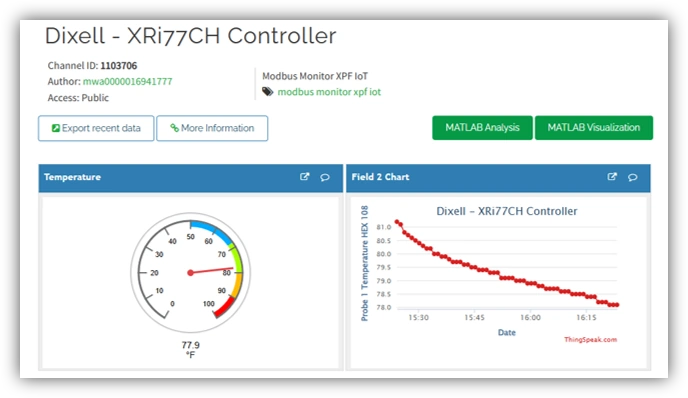 

What is ThingSpeak?
ThingSpeak is a cloud platform (by MathWorks) designed for IoT data collection, real-time monitoring, data storage, visualization, and basic analytics.
The retired add-ons for Modbus Monitor XPF (Windows) and Modbus Monitor Advanced (Android) were designed to publish Modbus data directly to ThingSpeak using simple HTTP. On ThingSpeak, you create Channels, and each channel contains up to 8 data fields (Field 1–Field 8). Each incoming update from your Modbus Monitor app becomes an Entry, shown in:
- Line charts
- Gauges
- Dashboards
- Analytics scripts (MATLAB)
- Export formats (CSV, JSON, XML)
Key Features:
- ✅ Auto-generated Charts - Real-time visualization of up to 8 data channels
- ✅ Cloud Storage - Free public channels, paid private options
- ✅ MATLAB Analytics - Run scripts on your data
- ✅ Real-time Alerts - Email/SMS notifications based on thresholds
- ✅ Public Sharing - Embed charts or share view links
- ✅ Data Export - CSV, JSON, XML downloads
Common Use Cases:
- Remote plant / industrial device monitoring
- Tank level and flow system visualization
- Long-term machine health trending
- Over-temperature or low-level alerting
- Dashboard creation for technicians or managers
Why Use ThingSpeak with Modbus Monitor?
This section records the purpose of the retired integration. It is retained for historical reference and is not a recommendation to purchase or configure a new Modbus Monitor ThingSpeak installation.
Benefits Across Both Platforms
- 🌎 Remote monitoring from any location
- 📈 Automatic historical charts
- 🔔 Threshold-based alerts
- 💾 Cloud data storage without maintaining servers
- 🛠 Works with both XPF (Windows) and Android
- 🔧 Simple setup: Channel ID + API Key
- 🔄 Updates at your configured polling rate
- 📤 Clean, secure cloud interface for customer access
Getting Started (All Platforms)
Step 1: Create ThingSpeak Account
- Visit thingspeak.com
- Sign up (free account available)
- Verify email
Step 2: Create Channel
- Go to Channels → New Channel
- Name: e.g., "Modbus Monitor"
- Description: Your project description
- Add Fields: Create up to 8 fields (Field 1, Field 2, etc.)
- Save and note your Write API Key
Step 3: Configure Your Platform
- Windows Users: Follow Windows Setup
- Android Users: Follow Android Setup
Step 4: Verify Data Flow
- Start polling/monitoring on your app
- Open ThingSpeak channel dashboard
- Charts should update within your configured interval
Platform Setup
-
Windows Setup (Archived)
Modbus Monitor XPF + ThingSpeak Add-on
- Advanced desktop application
- Professional monitoring tools
- Extended data logging features
-
Android Setup (Archived)
Modbus Monitor Advanced + ThingSpeak Add-on
- Works with TCP/IP, USB Serial, Bluetooth
- Integrates with MQTT & Google Sheets
- Mobile-friendly field setup
Key Concepts
API Keys
- Write API Key: Used by your app to send data to ThingSpeak
- Read API Key: Used to retrieve data from ThingSpeak
- Keep Write API Key private
Update Intervals
- Free Tier: Minimum 15 seconds between updates
- Commercial Tier: Can be as low as 1 second
- Check ThingSpeak pricing for limits
Field Mapping
- Monitor points are assigned to ThingSpeak fields in order
- Point 1 → Field 1, Point 2 → Field 2, etc.
- Maximum 8 fields per channel
Common Tasks
How do I create multiple channels?
Create one channel per data collection project. Use different API keys for each.
Can I make my ThingSpeak data public?
Yes. Enable "Public View" in your channel settings to share charts.
How long is data stored?
Free tier: Unlimited (within API limits). Check ThingSpeak pricing for commercial plans.
Can I export data?
Yes. Go to your channel → Data Export tab. Download as CSV, JSON, or XML.
FAQ
Can I upload to multiple ThingSpeak channels?
Yes. Each XPF instance uploads data to ThingSpeak channels using the first 8 Monitoring Points (if assigned).
To publish to multiple channels:
- Run multiple XPF instances, define one or more Monitoring Points
Does ThingSpeak work with write-only Modbus access?
Yes. You will need a Write API Key to send data to your ThingSpeak channel.
Check your ThingSpeak account under Channels → API Keys and use the key listed in the Write API Key section.
Can I run XPF 24/7?
Yes. Set up Windows Task Scheduler for automated polling. Monitor CPU/network usage to ensure device stability.
What data is kept locally in XPF?
XPF keeps local CSV/log files per session. These are separate from ThingSpeak cloud storage. Configure export options in Tools → Options.
Can I see upload history?
Yes. View → Event Log, then filter by "ThingSpeak". Shows all upload successes, failures, and timestamps.
What if my Modbus values are negative or decimals?
ThingSpeak accepts any numeric value. Negative numbers, decimals, and scientific notation all work fine.
Support & Resources
- ThingSpeak Documentation: thingspeak.com/docs
- ThingSpeak Forums: thingspeak.com/forums
- Our Support: quantumbitsolutions.com/support
Need help? Contact support@quantumbitsolutions.com